> ## Documentation Index
> Fetch the complete documentation index at: https://docs.uplift.ai/llms.txt
> Use this file to discover all available pages before exploring further.
# Creating and managing athlete profiles
> Create and manage your roster of athletes in the web app
There are two ways to add athletes to your Uplift roster: from the web platform (best for adding your full roster or bulk-managing athletes), or on the fly from the Uplift Capture mobile app while starting a session.
 ## Add and manage athletes from the web platform
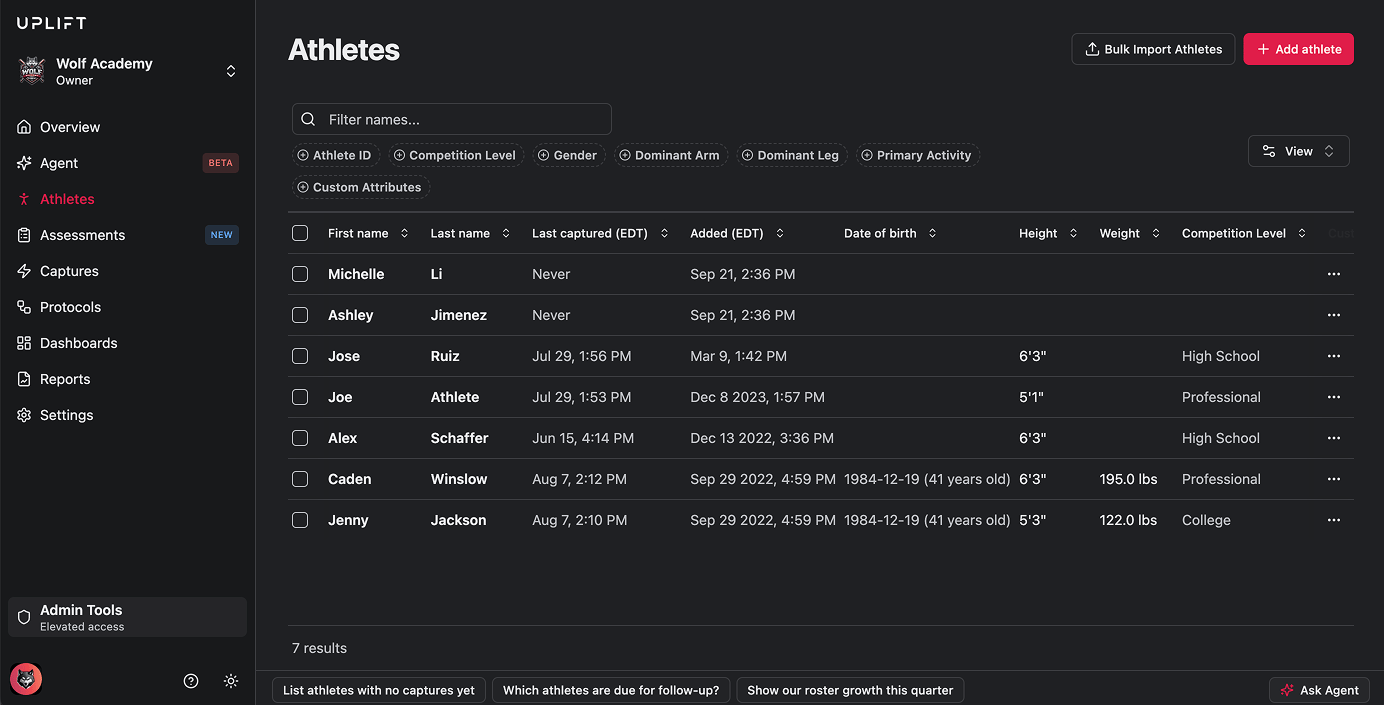
1. Log into [platform.uplift.ai](https://platform.uplift.ai/) and click **Athletes** in the left-hand navigation menu.
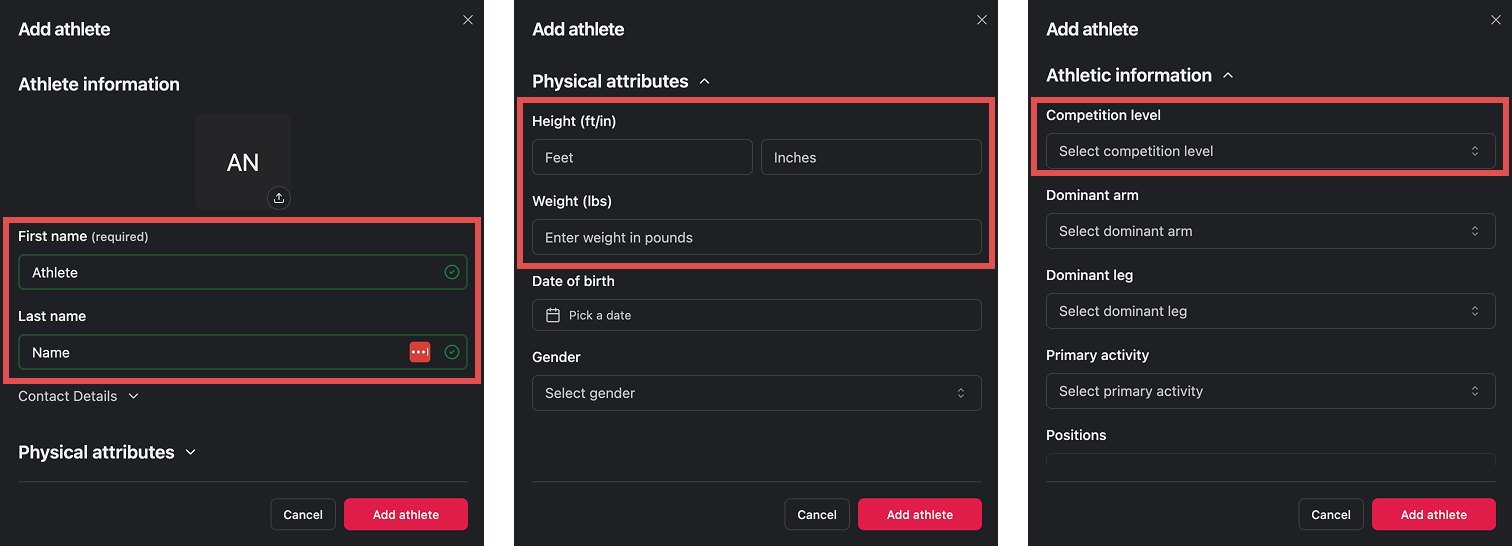
2. Click **Add Athlete** in the upper right, then enter the athlete's name.
3. The rest of the fields aren't required, but we **highly** recommend filling out:
* **Height and weight** (under Physical Attributes) - these improve the accuracy of certain metrics.
* **Competition level** (under Athletic Information) - this is used to compare the athlete against their peer group in Signals.
4. Click **Add Athlete** to save. The athlete now appears in the athlete list on this page.
## Add and manage athletes from the web platform
1. Log into [platform.uplift.ai](https://platform.uplift.ai/) and click **Athletes** in the left-hand navigation menu.
2. Click **Add Athlete** in the upper right, then enter the athlete's name.
3. The rest of the fields aren't required, but we **highly** recommend filling out:
* **Height and weight** (under Physical Attributes) - these improve the accuracy of certain metrics.
* **Competition level** (under Athletic Information) - this is used to compare the athlete against their peer group in Signals.
4. Click **Add Athlete** to save. The athlete now appears in the athlete list on this page.
 To update or remove an athlete later, find their row in the athlete list, click the **three dots** at the end of the row, then choose either:
* **Update Athlete** - to edit their information or attributes, or
* **Delete** - to remove the athlete's profile from your account.
## Add an athlete from the mobile app
You can also add a new athlete directly while setting up a capture session:
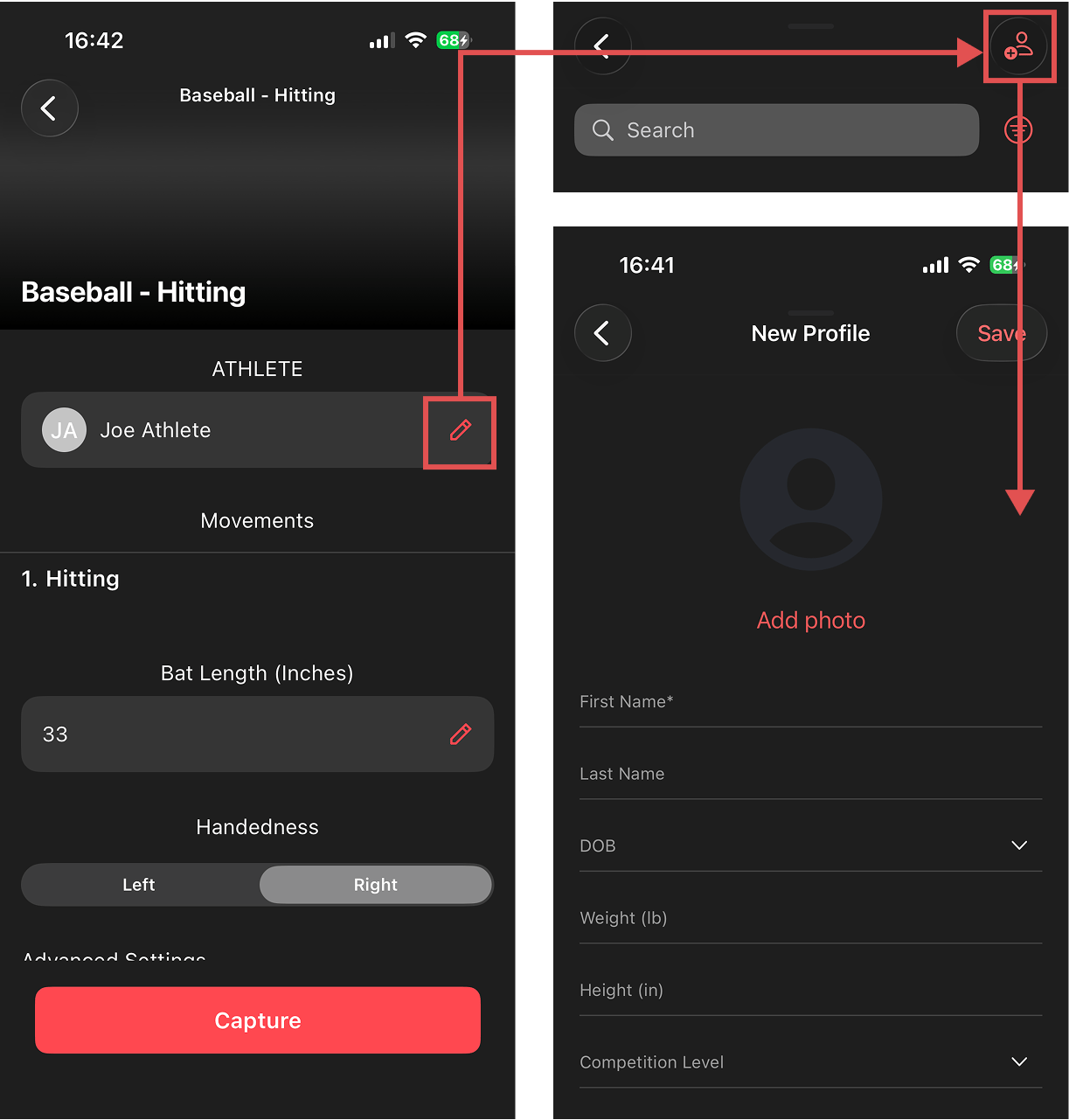
1. Start a session and get to the **Session details** screen.
2. Next to the athlete field, tap the **Edit** (pencil) icon to open your athlete list.
3. From the list, tap the **Add** button in the upper right to create a new athlete.
To update or remove an athlete later, find their row in the athlete list, click the **three dots** at the end of the row, then choose either:
* **Update Athlete** - to edit their information or attributes, or
* **Delete** - to remove the athlete's profile from your account.
## Add an athlete from the mobile app
You can also add a new athlete directly while setting up a capture session:
1. Start a session and get to the **Session details** screen.
2. Next to the athlete field, tap the **Edit** (pencil) icon to open your athlete list.
3. From the list, tap the **Add** button in the upper right to create a new athlete.
 ***
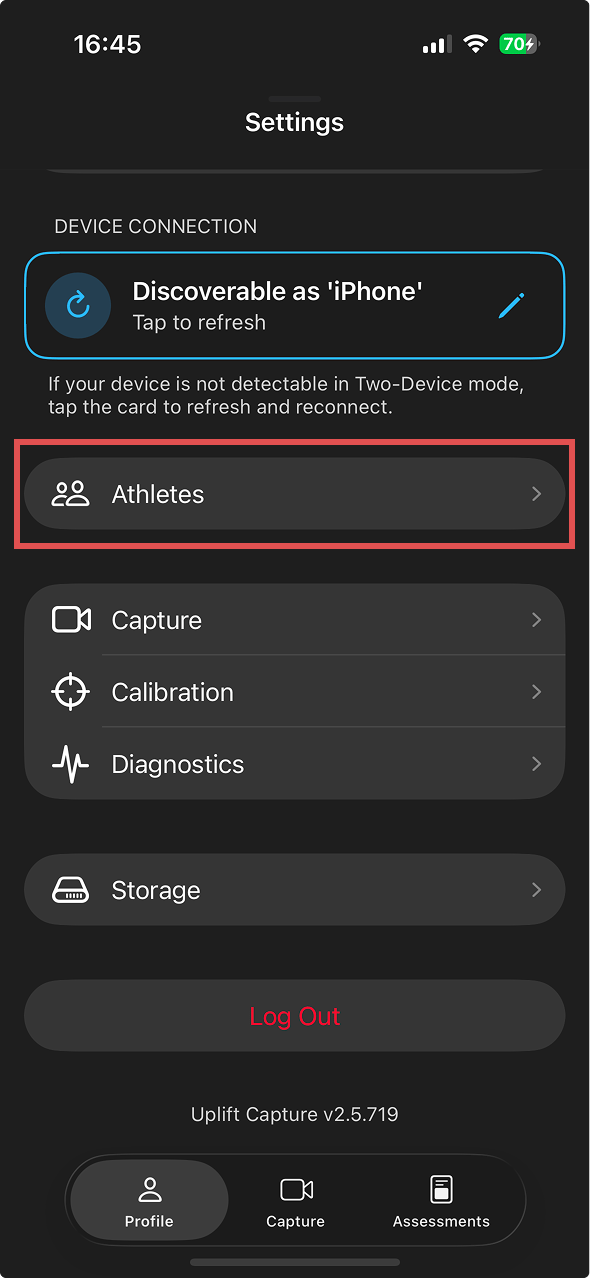
You can also add athletes outside of the Assessment flow by visiting the Profile tab and tapping Athletes in the mobile app.
***
You can also add athletes outside of the Assessment flow by visiting the Profile tab and tapping Athletes in the mobile app.